 Rolling Keep Notes
If Wanderburg crashes when starting a run, begin with the available game updates and the graphics launch choices supplied by the developer. Treat these as troubleshooting options: this guide has not been tested on our own game installation and cannot promise a fix for every system.
First, identify where the game stops
Write down whether the failure happens before the main menu, when selecting a map, during a run, or on a reward screen. This makes your report more useful than simply saying that the game crashes.
A frozen reward screen may have a different cause from a graphics crash. Randwerk's September 12 patch notes for 0.9.10 report a fix for getting stuck on the Rare Artifact screen. That specific fix does not establish that every freeze or crash has been resolved. Official 0.9.10 notes
Allow any pending Steam update for Wanderburg to finish before retrying. Version 0.9.10 is the newest numbered release announcement reviewed for this article on September 13, 2026; it is not a live check of your installed version.
Try the developer-provided launch choices
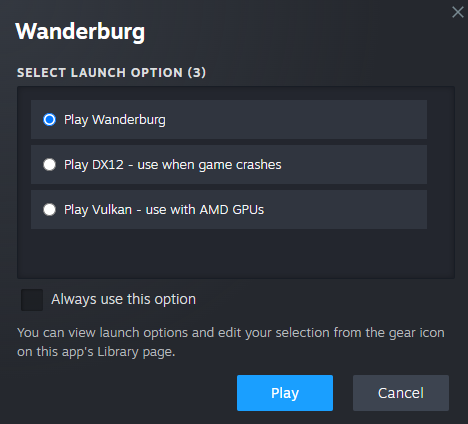
The image accompanying the September 10 announcement shows Steam's launch selector with these entries:
| Entry in the official image | What the label says |
|---|---|
| Play Wanderburg | Default launch |
| Play DX12 - use when game crashes | Alternative for crashes |
| Play Vulkan - use with AMD GPUs | Alternative labelled for AMD GPUs |
To try the options shown in that image:
- Launch Wanderburg from your Steam Library and look for the launch-choice dialog.
- If the normal launch fails, try the DX12 entry. For an AMD GPU, the developer also provides the Vulkan choice.
- Select one option and press Play. Change one option at a time so you can tell which result belongs to which attempt.
- If Steam remembers an earlier choice, the dialog's own instruction points to the gear icon on the game's Library page to view and edit the selection.
These labels and the gear-icon instruction are verified from the developer's image, not from a current installation. If your menu differs, use the options actually offered by your client rather than assuming the historical screenshot is exact. Official launch-selector image, 0.9.8 announcement
Why older advice may say DX11
In a September 9 discussion, a contributor explicitly marked as a developer recommended a DX11 launch option. The later announcement's image uses the labels above. The image does not identify which graphics API the default entry uses, so we do not relabel it as DX11.
The same discussion contains both successful attempts and continued crashes. Those reports describe particular players and builds; they do not measure the success rate on today's version. Developer reply and player reports, later replies
If it still crashes
Our suggested next step is a concise report in the game's Steam discussions. Include your CPU, GPU, operating system, installed version if visible, failure location, exact error message, and the result of each launch choice. Avoid repeatedly changing several settings together, which makes the useful comparison harder to recover.
No save deletion or save-repair procedure has been verified for this article. A crash and an achievement that does not unlock also need different checks; see our achievement patch and requirement notes.